Getting Started with Reactive Agents
This guide will walk you through setting up Reactive Agents and connecting your first application.
Overview
The quickest way to get started is using Docker Compose, which includes Reactive Agents, PostgREST, and PostgreSQL in a containerized environment.
Prerequisites
- Docker installed on your system (install Docker)
- Docker Compose installed on your system (install Docker Compose)
- AI provider API key (Google Gemini, xAI, Anthropic, etc.) - added via dashboard (Google | xAI | Anthropic)
- OpenAI API key (required for optimization features - added via dashboard) (get API key)
Step 1: Clone and Setup
# Clone the repository
git clone https://github.com/idkhub-com/reactive-agents.git
cd reactive-agents
Optional Environment Configuration
If you want to customize authentication or add an OpenAI API key, create a .env file in the repository root. The following variables are optional:
OPENAI_API_KEY- Your OpenAI API key (can also be added via dashboard)BEARER_TOKEN- Custom API tokenACCESS_PASSWORD- Dashboard passwordJWT_SECRET- JWT signing secret
All database configuration (PostgreSQL and PostgREST) is handled automatically by Docker Compose.
Step 2: Start with Docker Compose
Start all services in the foreground (you'll see logs in your terminal):
docker-compose upStart in the background (daemon mode):
docker-compose up -dView Logs
To view logs (useful when running in daemon mode, or to check logs at any time):
docker-compose logs -fStep 3: Access Dashboard
Once Docker Compose has started all services, open your browser and visit:
Docker Compose Setup Complete: Reactive Agents is now running and ready to use! You can start making API calls immediately. For optimization features, see the Configuration Steps section below.
Configuration Steps
Initial Dashboard
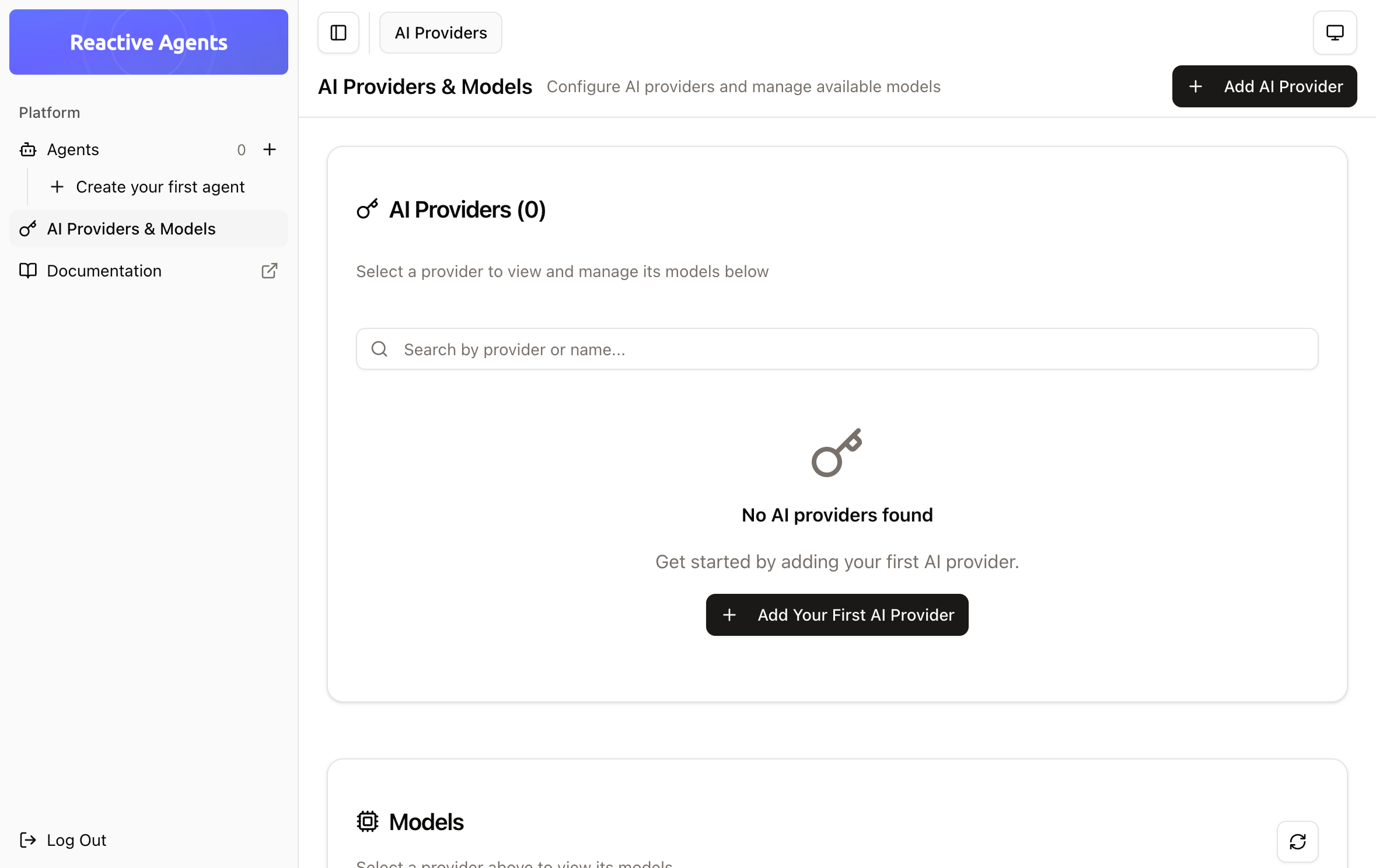
To enable optimization features, complete these steps:
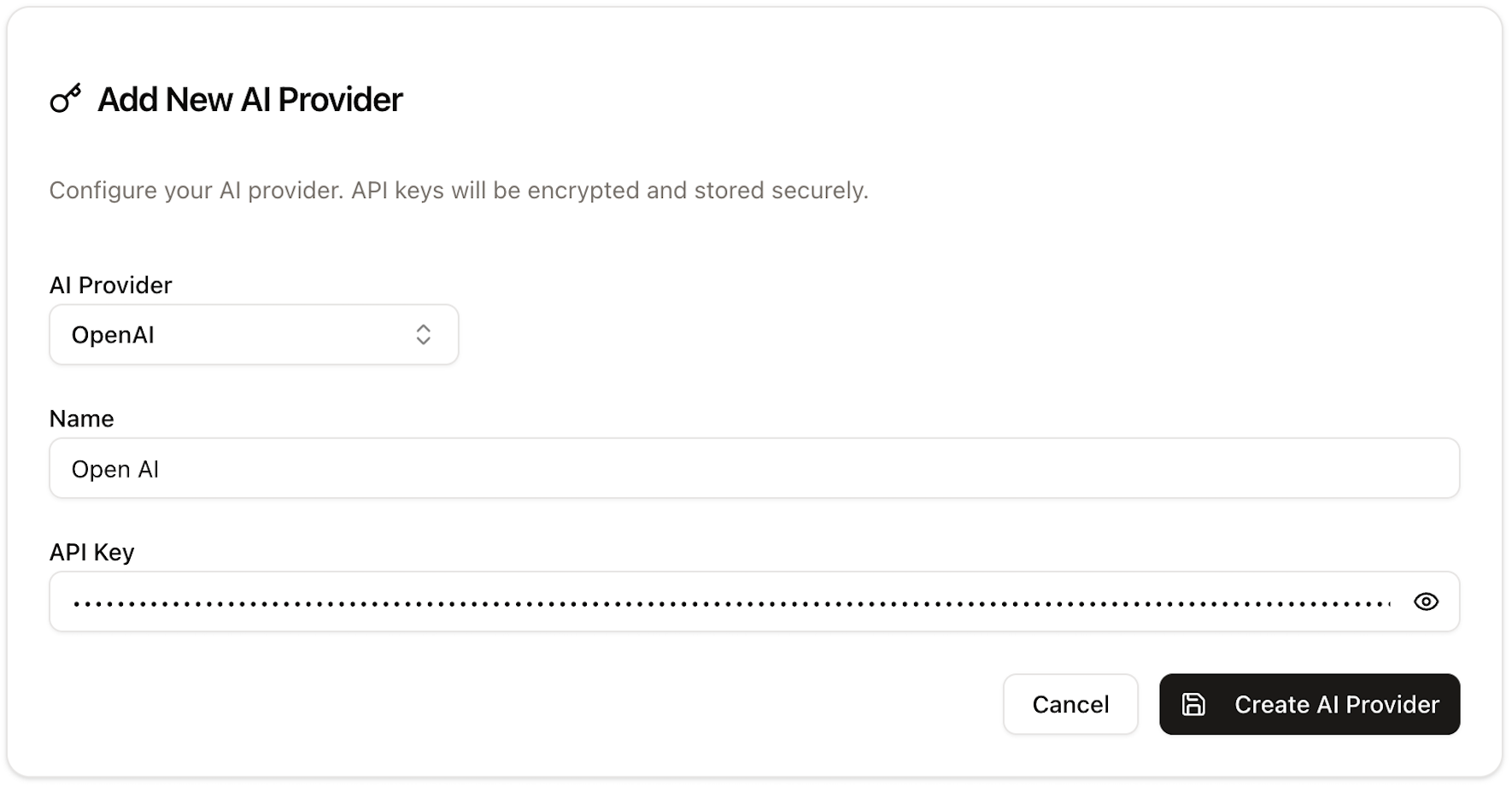
1. Add an AI Provider
Navigate to the AI Providers & Models section and click "Add AI Provider." Configure your AI provider settings and click "Create AI Provider."

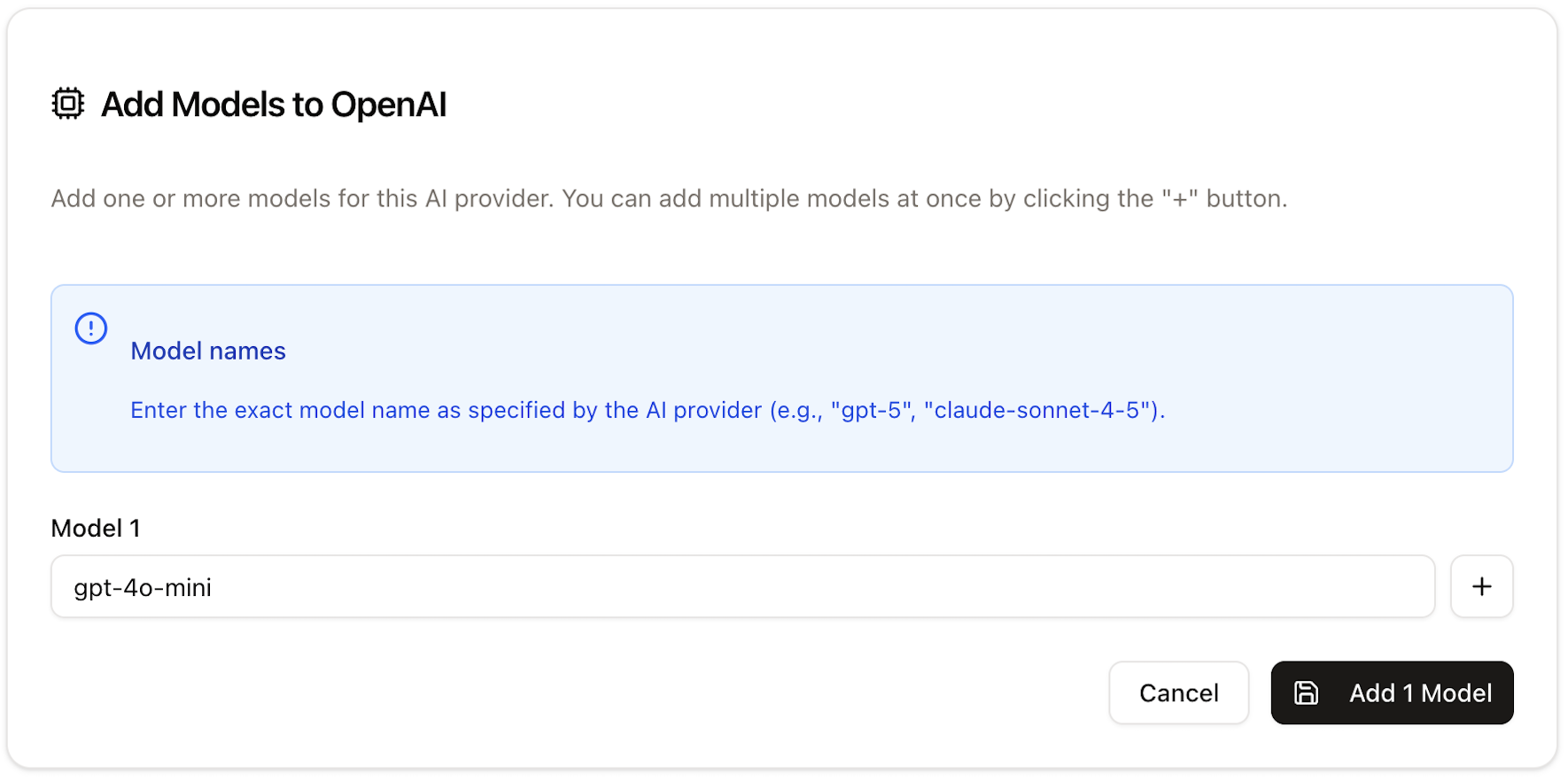
2. Add a Model
After adding an AI provider, you are automatically redirected to the Models setup section, were you will add your first AI model from that provider. Configure your first model and click "Add 1 Model".
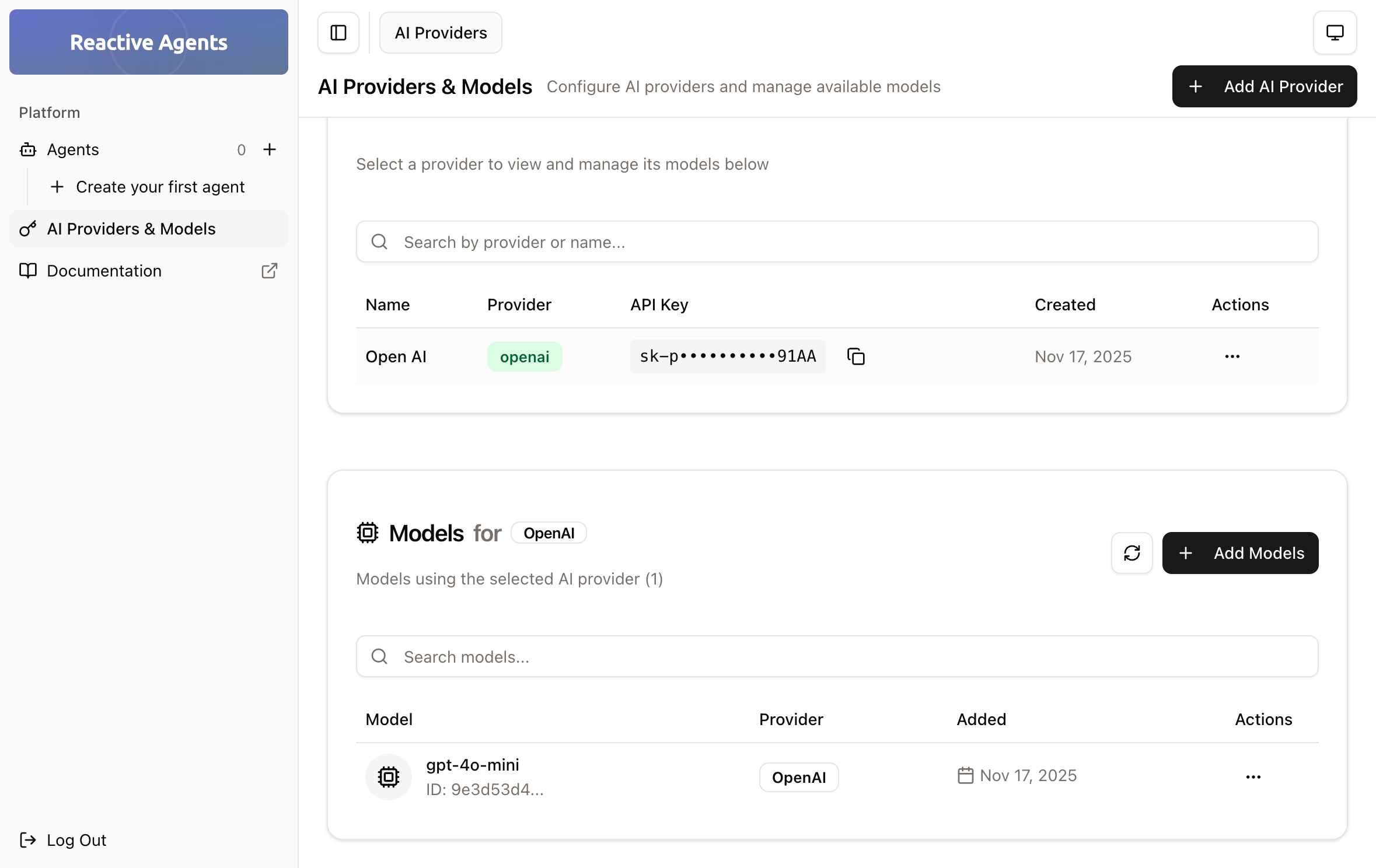
Successful AI Provider and Model looks like:
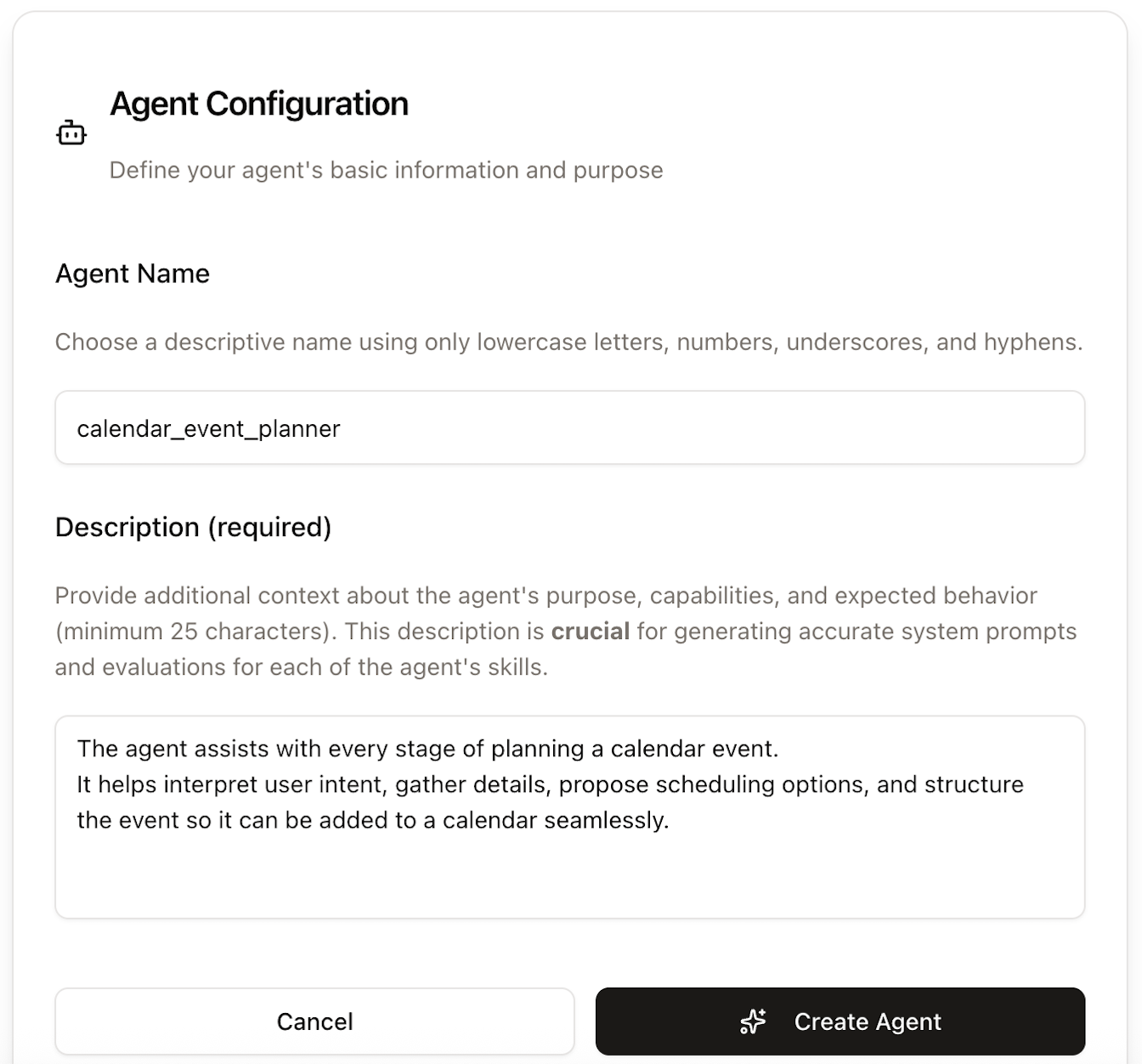
3. Create an Agent
Navigate to the Agents tab.
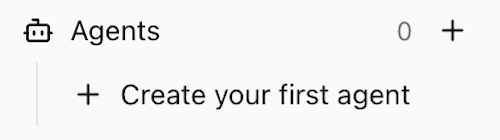
Click "Create Agent"

Configure your first agent to start handling AI interactions, and click "Create Agent"
4. Create Skills
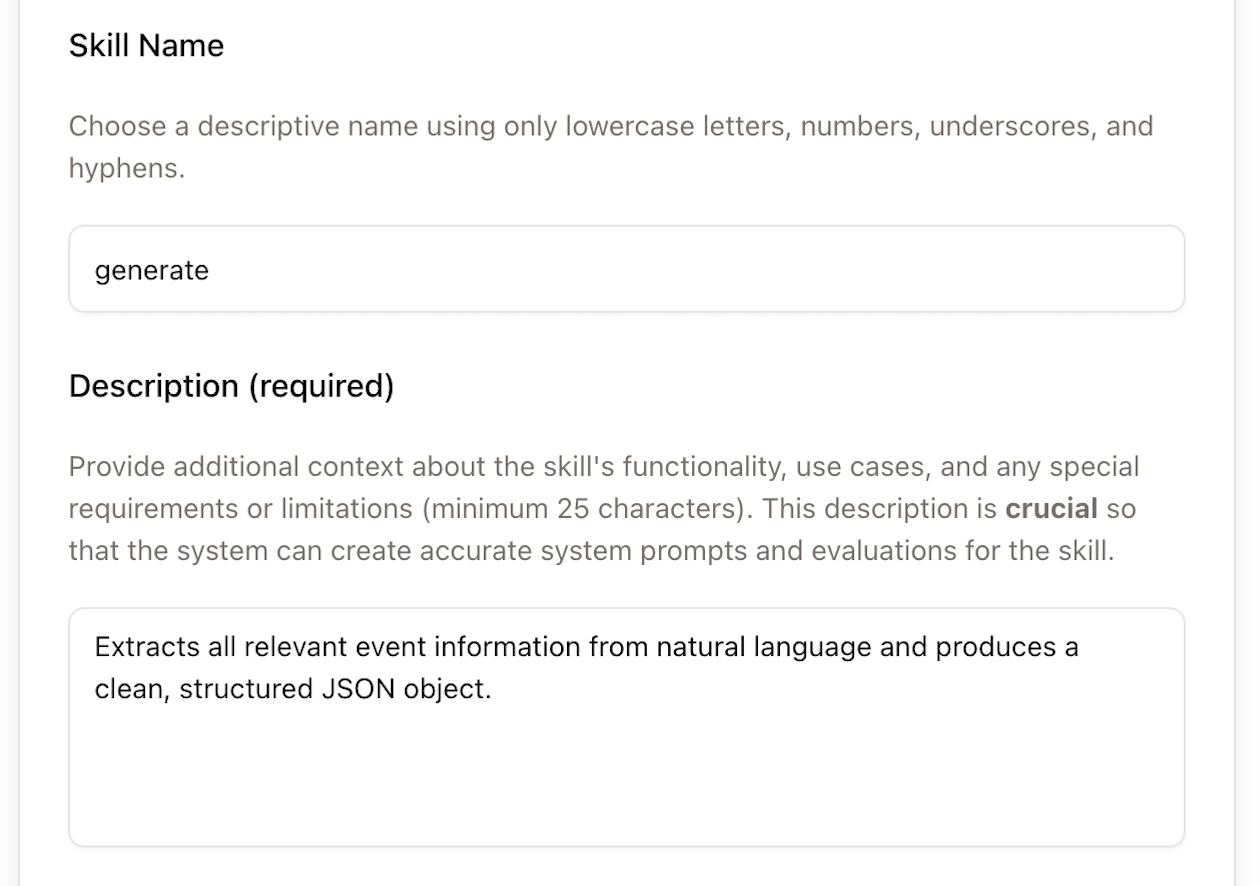
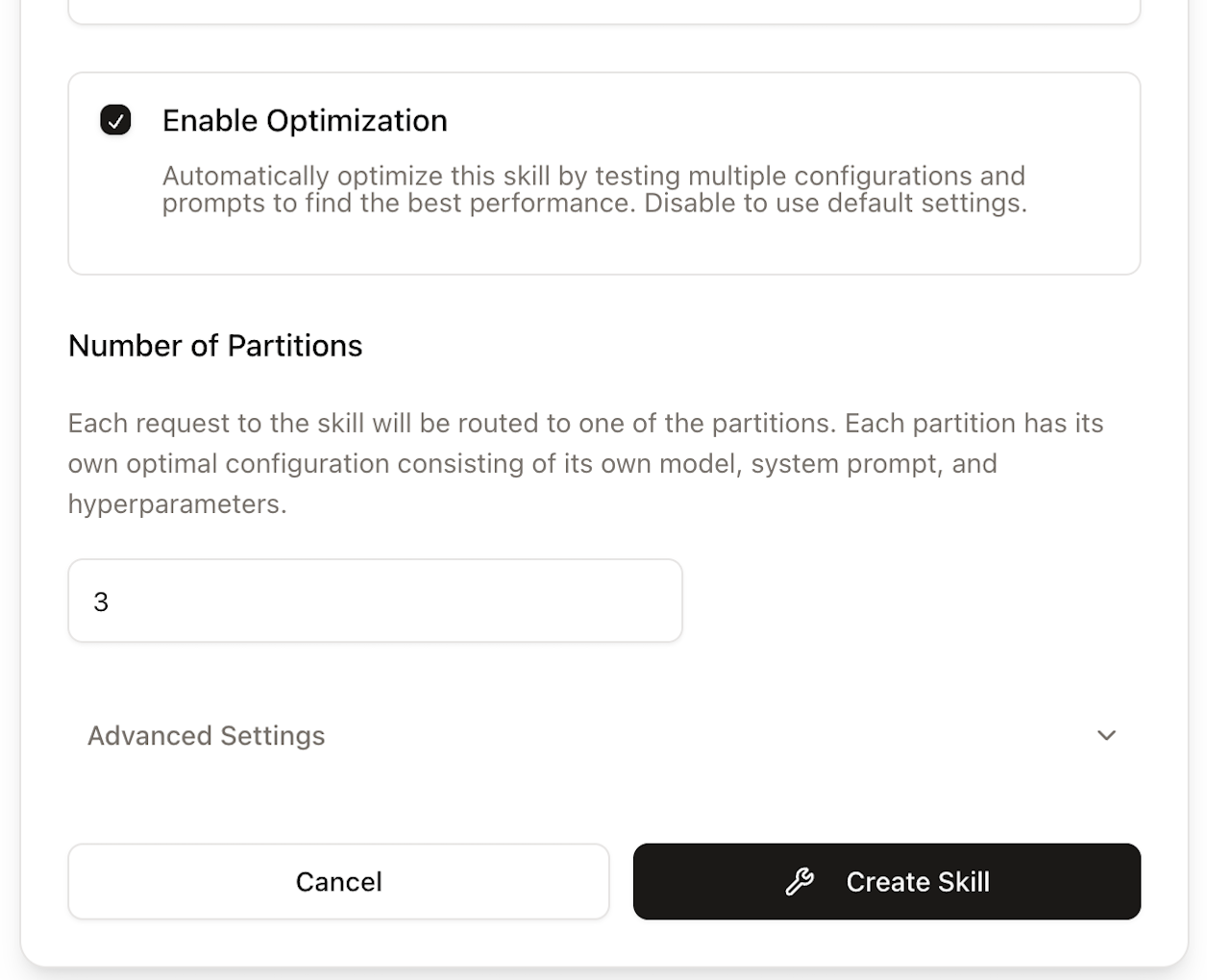
Add skills to define what your agent can do. Click "Create Skill"

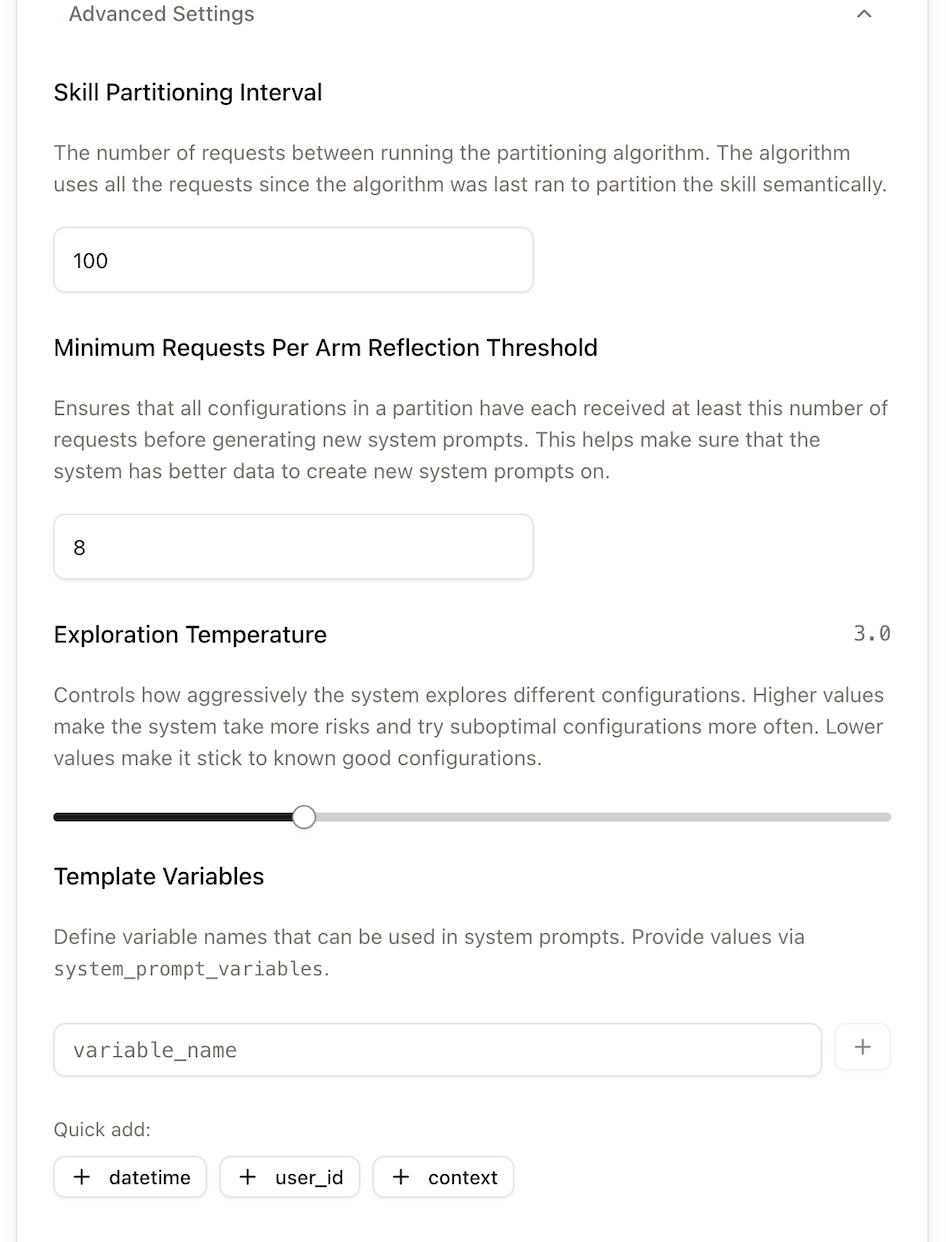
Configure the skill details including name, description, partitions and advanced parameters.
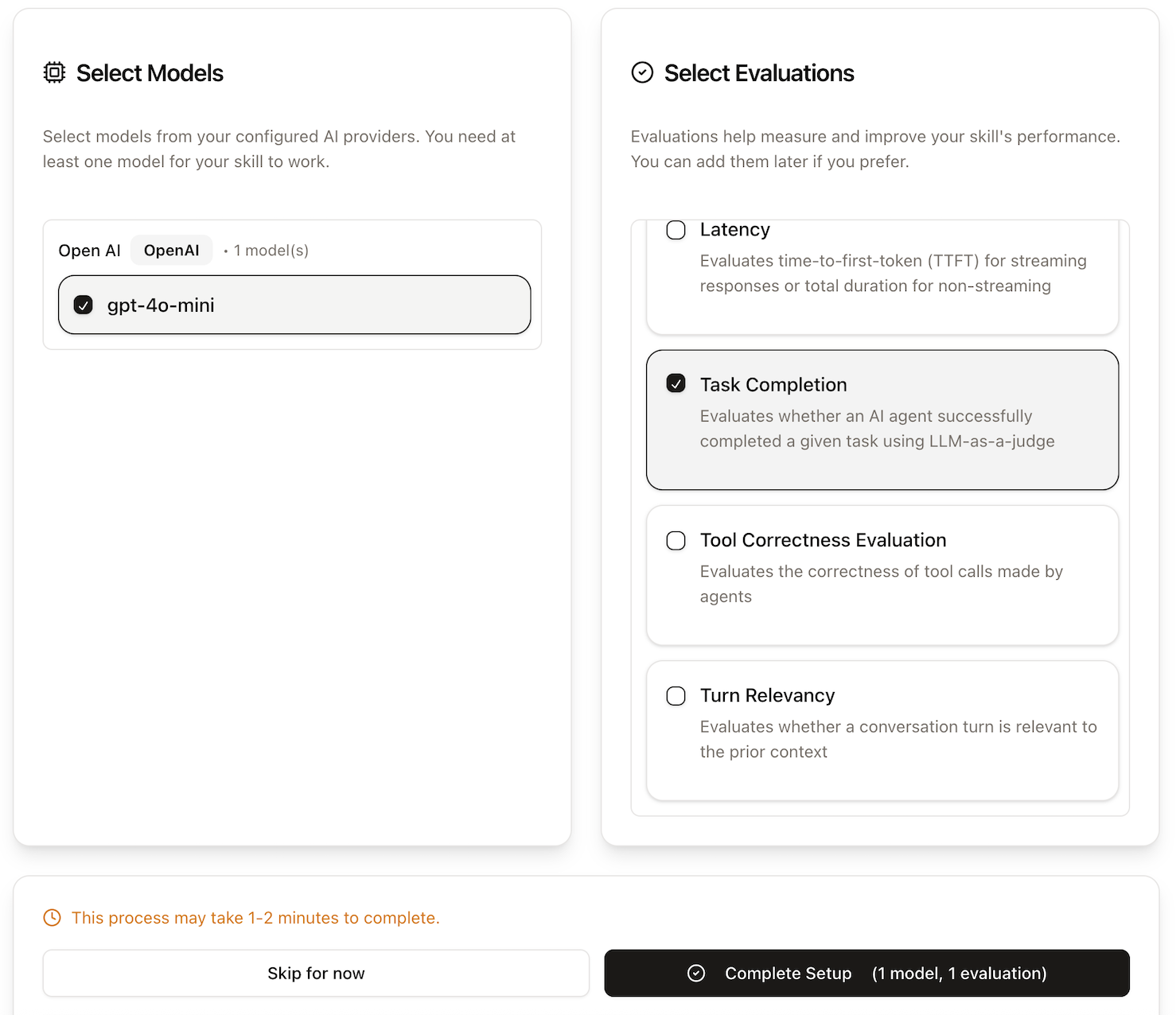
5. Add Models and Evaluations to Skills
Associate models with your skills by selecting the appropriate model from the available options. Select from available evaluations to configure evaluation criteria for your skill to measure and optimize agent performance. Finally, Click "Complete Setup"
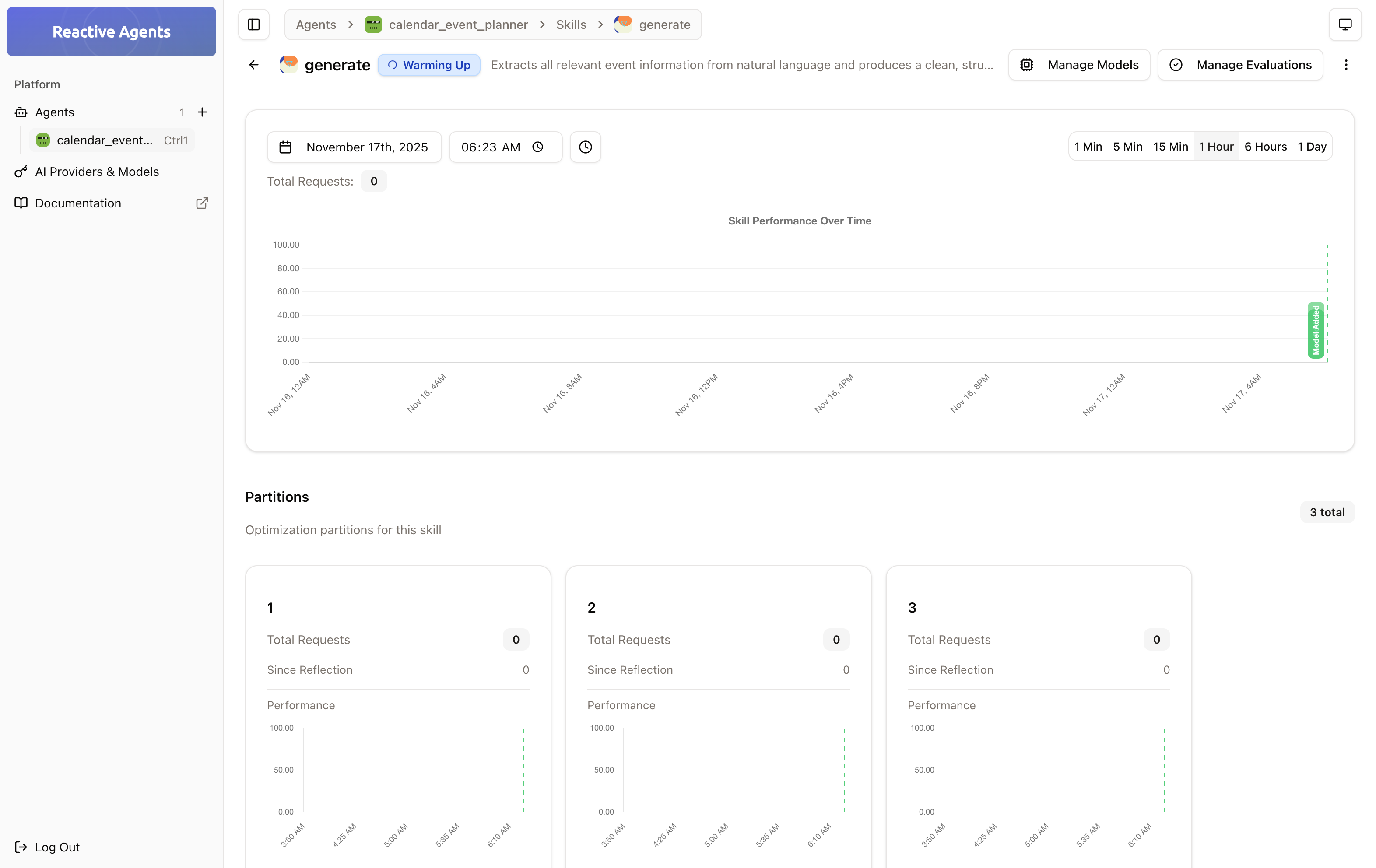
Successful Skill Setup looks like:
6. Test Your Setup
Make your first API call to verify everything is working. Replace agent_name and skill_name with the names you created in the previous steps:
import OpenAI from 'openai';
import 'dotenv/config';

const client = new OpenAI({
  apiKey: process.env.BEARER_TOKEN,
  baseURL: 'http://localhost:3000/v1',
});

const idkhubConfig = {
  targets: [
    {
      optimization: 'auto'
    },
  ],
  agent_name: 'My Assistant',
  skill_name: 'General Help',
};

const response = await client
  .withOptions({
    defaultHeaders: {
      'ra-config': JSON.stringify(idkhubConfig),
    },
  })
  .chat.completions.create({
    model: 'gpt-5',
    messages: [
      { role: 'user', content: 'Hello, how are you?' }
    ],
  });

console.log(response.choices[0].message.content);
const idkhubConfig = {
targets: [
{
optimization: 'auto',
},
],
agent_name: 'My Assistant',
skill_name: 'General Help',
};
const response = await fetch('http://localhost:3000/v1/chat/completions', {
method: 'POST',
headers: {
'Authorization': `Bearer ${process.env.BEARER_TOKEN}`,
'Content-Type': 'application/json',
'ra-config': JSON.stringify(idkhubConfig),
},
body: JSON.stringify({
model: 'gpt-5',
messages: [
{ role: 'user', content: 'Hello, how are you?' }
],
}),
});
const data = await response.json();
console.log(data.choices[0].message.content);#!/bin/bash
curl -X POST http://localhost:3000/v1/chat/completions \
-H "Authorization: Bearer ${BEARER_TOKEN}" \
-H "Content-Type: application/json" \
-H "ra-config: {\"targets\":[{\"optimization\":\"auto\"}],\"agent_name\":\"My Assistant\",\"skill_name\":\"General Help\"}" \
-d '{
"model": "gpt-5",
"messages": [
{"role": "user", "content": "Hello, how are you?"}
]
}'Optional: Reactive Agents works without these steps, but optimization features will be disabled.
Next Steps
- Explore the Dashboard: Familiarize yourself with the interface
- Configure Multiple Providers: Add support for different AI providers
- Set Up Evaluations: Create custom evaluation criteria
- Monitor Performance: Track your AI system's performance over time
Ready to dive deeper? Check out our Core Concepts guide.